Everything you need to set up, run and access your CAT4 results
Thank you for using CAT4 to build a deeper understanding of your students’ cognitive potential.
This page is your step-by-step guide to setting up and running your CAT4 digital or paper assessment, managing the process in Testwise, and accessing your reports.
Setting Up CAT4 Testing
Watch this video as our Education Advisor, Max, walks you through the CAT4 setup process step by step.
Please allow at least two weeks before your intended test date so we can print and deliver your personalised answer sheets.
5. We Print & Deliver Personalised Answer Sheets (paper only)
Renaissance Australia will:
Print pre-filled answer sheets based on your uploaded data
Include additional blank sheets as backup
Deliver directly to your school
6. Before Running the Test
Check system requirements – Share the Minimum System Requirements page with your IT team and ask them to follow the ‘Allow List’ section to resolve any network access issues.
Confirm device compatibility – Review all system requirements to ensure devices meet the necessary specifications. Note that some tests are not supported on all device types.
Clear browsing history and cache – On each device being used, clear the browser history and cache before starting the test to avoid any technical issues.
7. Run the Assessment (digital and paper)
On the day:
Follow standard administration guidance
Ensure answer sheets are not folded or bent (paper only)
There is a two-week turnaround from when we receive your completed answer sheets.
You will receive an automated email notification from Testwise once your CAT4 results are available to access.
10. Accessing Your Reports (digital and paper)
Once processed:
Log in to Testwise
Generate and download your reports
Reports available include:
Individual student reports
Group reports
Cohort analysis
These reports help you build a clearer understanding of student strengths, reasoning profiles and potential.
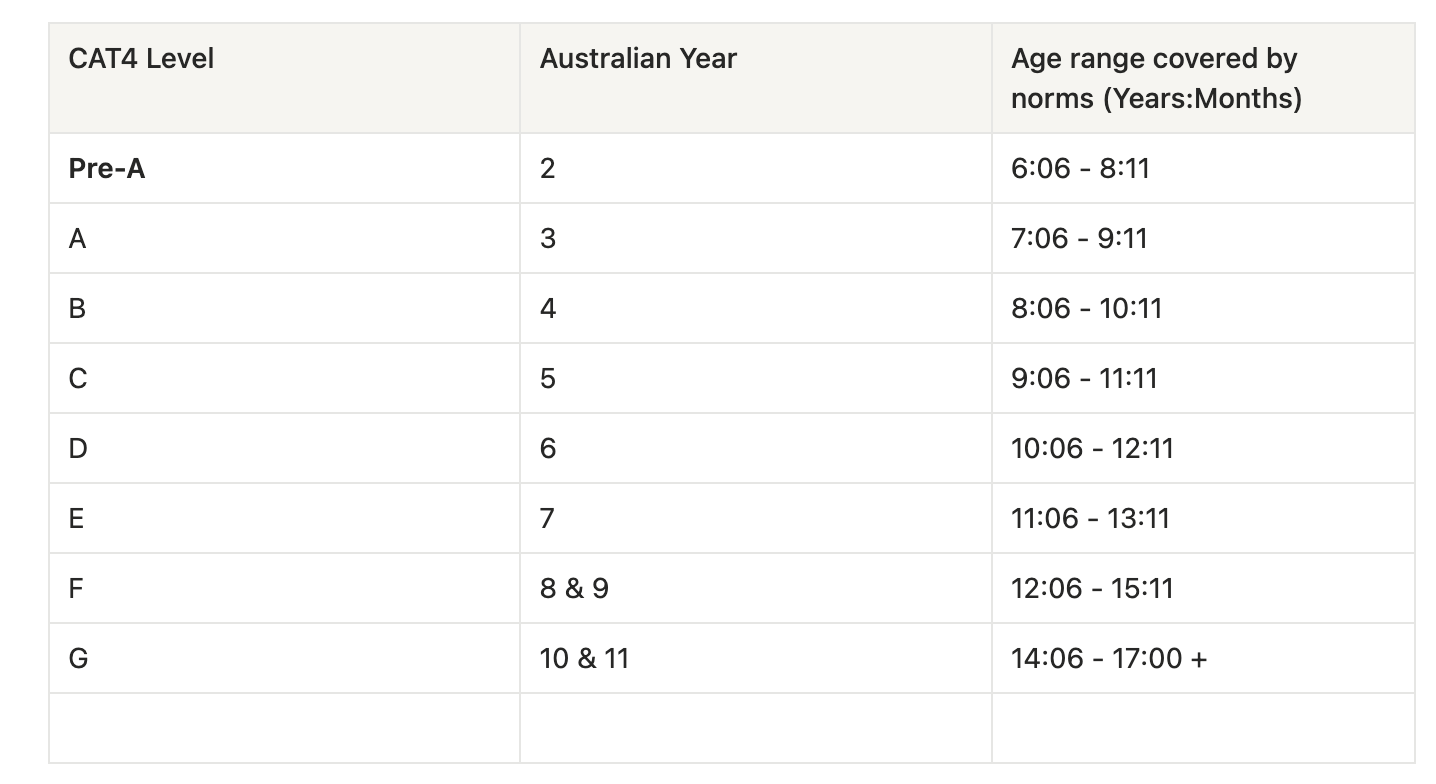
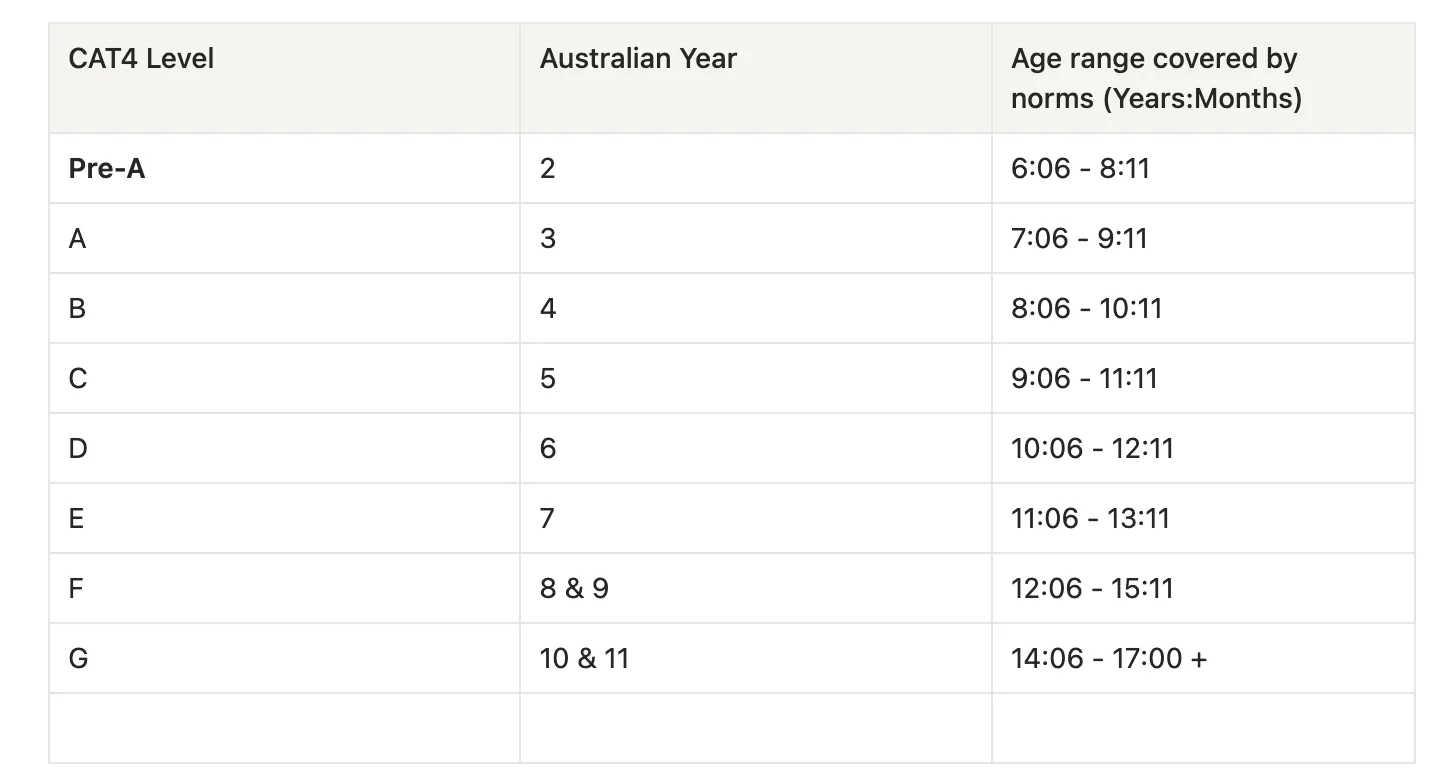
CAT4 Australian Levels & Age Ranges
The table below outlines the Australian year level alignment and the age range covered by norms for each CAT4 paper level. These norms ensure student results are compared appropriately against peers of a similar age.
Use this guide when placing orders or creating sittings in Testwise.
Students use the Access Codes, a unique code assigned per student test sitting/session to access the assessment or screener they’re taking. Codes can be downloaded via PDF or CSV through the ‘ellipsis’ … on the sitting. These codes can Students will use these codes at www.testwise.com/code. We’ve also addressed this in the above video
If I have incoming year 7 students, what CAT4 Level should I use?
The CAT4 assessment should always be completed for a students current year level. For incoming year 7 students who are in year 6, we would recommend the Level D test.
Should CAT4 be completed in one sitting or over multiple days?
Renaissance recommends splitting the test into several sessions rather than completing it in one long sitting. This helps reduce student fatigue and keeps concentration high so the results are more reliable. Each session lasts about 40–45 minutes, including instructions and practice questions, and there should be short breaks between tests if they occur on the same day. Schools normally try to complete all parts within a short period (for example within the same week) so conditions are consistent.
Example schedule:
Day 1: Non-verbal reasoning tests (~45 minutes)
Day 2: Verbal reasoning + first quantitative test (~45 minutes)
Day 3: Second quantitative test + spatial reasoning (~45 minutes)
This structure spreads the cognitive load across multiple days, allowing students to stay focused while still completing the full CAT4 assessment within a reasonable timeframe.
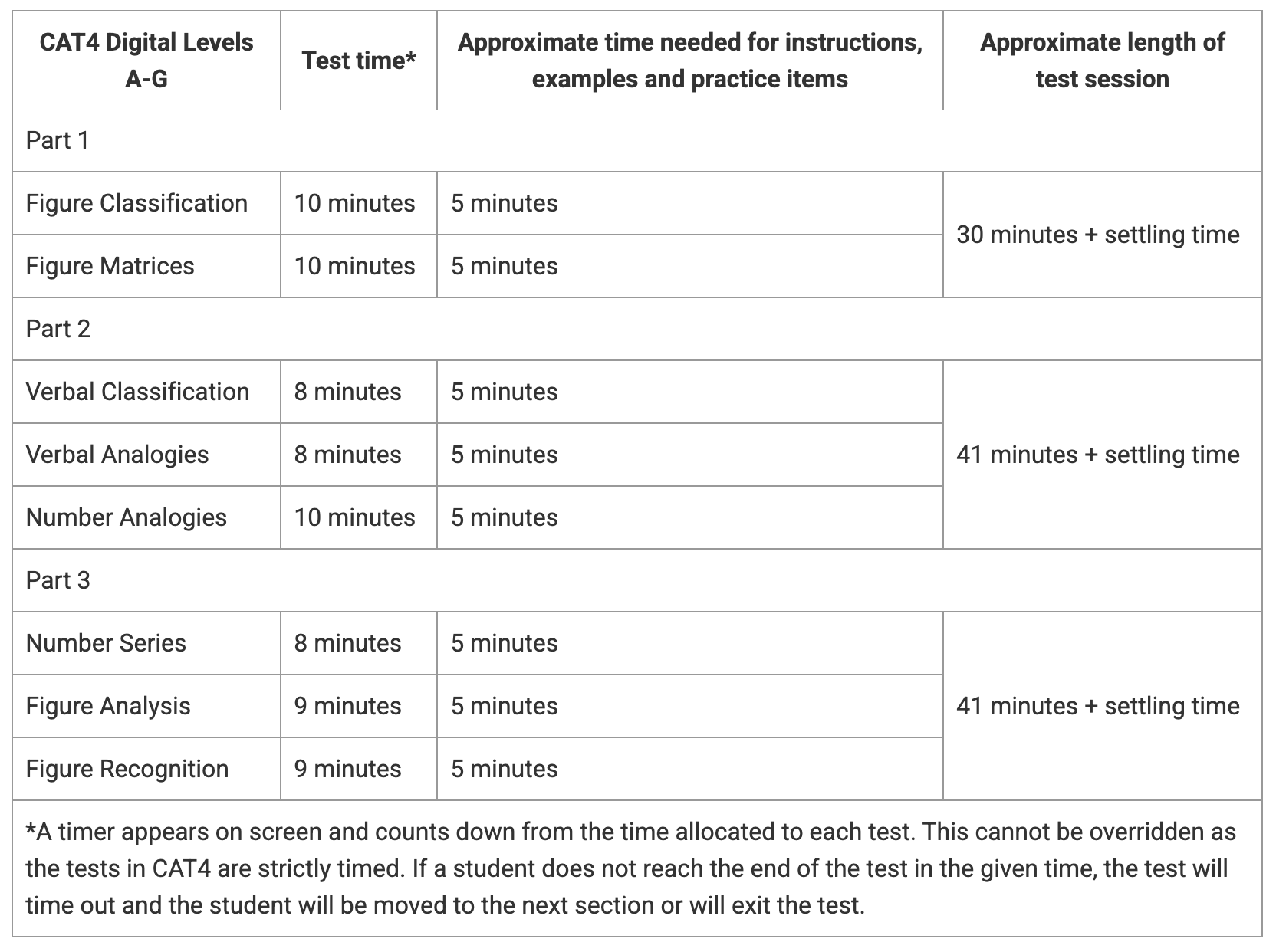
How long does CAT4 take to complete?
Can students pause the assessment and return later?
No. Students can only stop their test when the final time fully elapses on the current part they’re on. Students must NOT close their browser during a test – doing so does not automatically save process and can result in loss of test data.
Can we create separate sittings for each CAT4 section?
No. Sittings created include all parts of the CAT4 assessment.
Define Sitting statuses and student Part Statuses (Complete, In Progress, etc.) and highlight access codes usage (30 days after sitting expires – can still use code to complete).
Students are completing the test, but the progress screen isn’t updating correctly. What should I do?
Start with refreshing your sitting page. Next, check whether the student has reached their homepage to select the next part of the assessment. If students have not, then their progress will not update.
A student’s CAT4 test won’t progress past a section. What should I do?
If students are unable to progress past a section, this may be a connectivity issue. Please ensure a stable connection.
Can a CAT4 test be restarted?
We do not suggest restarting a CAT4 test. Once students start a part of the assessment, no progress is saved until they have completed it fully. Any instance of restarting the assessment may result in students completing sections multiple times.
What happens if a student accidentally exits a test?
If a student accidentally exits a test, there is the risk of data not being saved. It’s important for students to complete the part of the assessment they’re on before closing out of the browser.
Can a closed sitting be reopened?
Once a sitting has been closed, it cannot be reopened or edited. Any student who did not start the test will have the credits allocated to them returned to the total number of available credits on your account.
What happens if students don’t finish before the sitting expires?
If students started the assessment and completed a part, there is a 30-day completion window across all parts. If students didn’t complete the entire assessment (all parts) within the 30-day window, expect individual part scores but no combined/group-level scores for that student.
Credits & Subscriptions
Can I purchase additional credits?
Please contact [email protected] if you need to purchase additional credits. There is a minimum order of 10 when ordering the CAT4 assessment, both digital and paper.
Why am I seeing “No credits available” when creating a sitting?
There are a few reasons why you may be seeing ‘No credits available’ when attempting to create a sitting. Your current subscription may not have started yet or you may not have any credits available due to current sittings with allocated credits or all credits being used up.
Can a CAT4 test be restarted?
We do not suggest restarting a CAT4 test. Once students start a part of the assessment, no progress is saved until they have completed it fully. Any instance of restarting the assessment may result in students completing sections multiple times.
Paper Testing
Why weren’t all answer sheets scanned successfully?
Answer sheets may not scan successfully if:
They have been completed in pencil.
Marks have been made outside the answer boxes.
There are drawings, scribbles, or other markings on the paper.
More than one answer has been selected for a question.
To ensure successful scanning, please follow the instructions on the answer sheet carefully:
Use a black or blue pen.
Fill in responses clearly.
Select only one answer per question.
Avoid making any marks outside the designated boxes.
Ensure the student ID is completed correctly when using a spare answer sheet.
What are the benefits of using Renaissance-printed answer sheets?
The paper based CAT4 assessment works well for schools that do not have enough devices for students taking the assessment or if there are internet connection issues that could impact administering the assessment.
How far in advance should I request printed answer sheets?
Ideally, printed answer sheets should be requested at least 3 weeks before the test date to allow enough time for printing and delivery.
Why can’t you scan additional student answer sheets?
We can scan additional answer sheets if the student has a sitting set up in the system. However, we recommend using the answer sheets we provide rather than printing them at school, as our sheets are designed for the scanning process and help ensure accurate results. If you use a spare answer sheet, please make sure the student ID is clearly written on the sheet, otherwise we may not be able to match the results to the correct student.
Examples of correct answers (where to mark, where to write)
Ask pupils to mark answers with a thin horizontal line – walk around room to ensure they do this correctly.
Reports & Results
What is a CAT4 combination report?
A Combination Report compares results from various attainment tests and CAT4. The results can be used to compare the potential attainment of a student, as determined by CAT4, and their ongoing attainment.
Can CAT4 help identify students needing support?
Yes — CAT4 is designed to surface cognitive strengths/weaknesses that can flag students who may need additional support (or challenge), based on below average scores when comparing students battery Standard Age Scores or bias which can be used to identify students whose attainment may not match their scores. .
Student Data & Administration
Can student details be edited after testing?
Yes, if student details are found to be incorrect before, during, or after students take the assessment, they can be changed to provide correct results.
Does the actual test date affect CAT4 results?
Yes, the actual test date will affect SAS (Student Age Score), NPR (National Percentile Rank), and Stanine outputs because these are all age-normalised.
The information required is the students first and last name, date of birth, gender, and student ID. This is referenced in the above video where Max shows you how to upload your student data.